

Environment Variables & Secrets
Securely manage your API keys, tokens, and other sensitive configuration data. Noah provides encrypted storage for all your environment variables, ensuring your secrets never leave your project environment.Identifying Missing Environment Variables
When your dApp requires certain environment variables or API keys, you’ll see a “Missing env variables” warning indicator in your preview. This alerts you that some configuration is needed before your dApp can function properly.
Accessing Environment Variables Settings
To manage your environment variables:Open Project Settings
Click the Settings button (gear icon) in your project toolbar to access Project Settings.
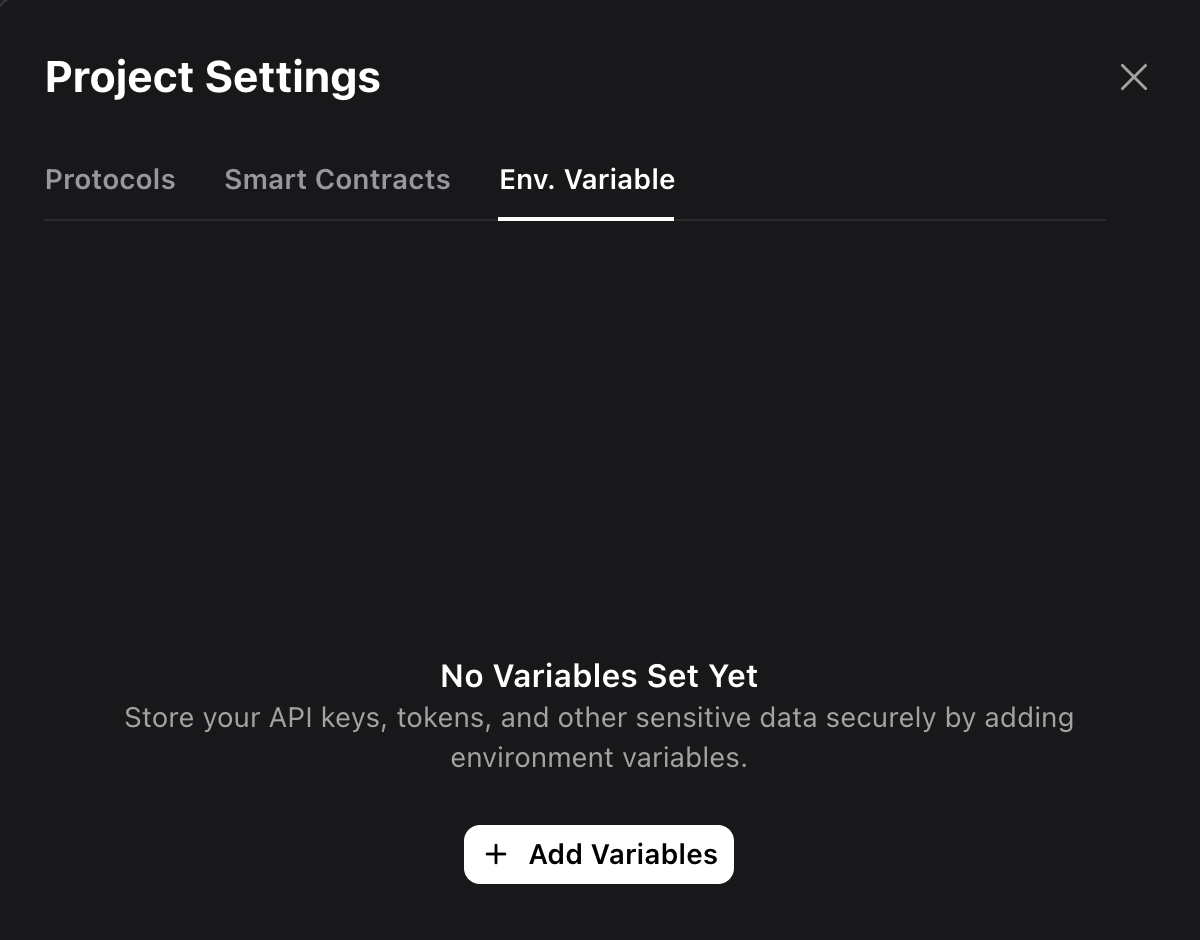
Adding Environment Variables
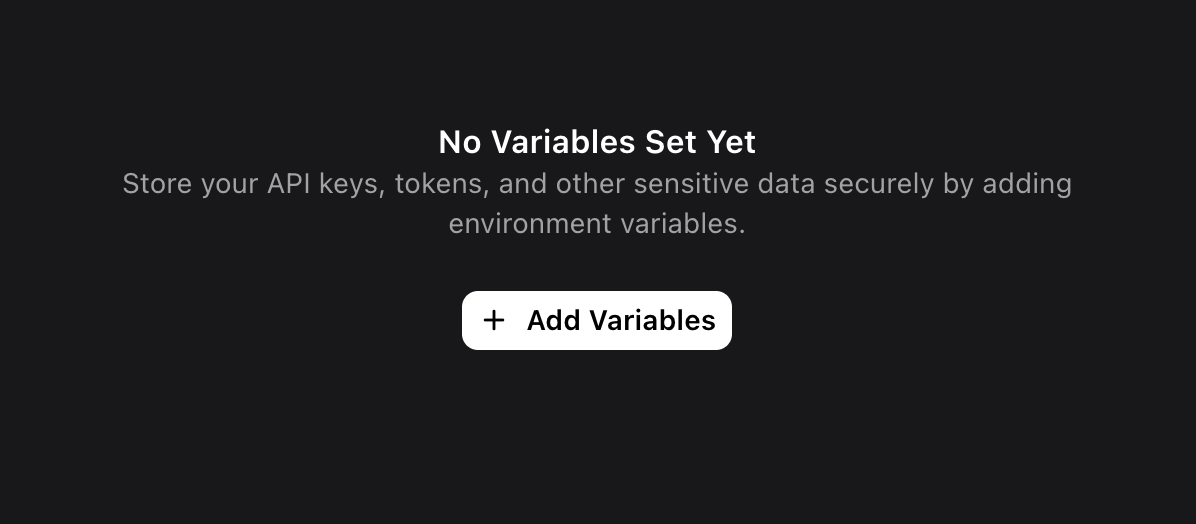
Configure Your Variables
In the dialog, you’ll see fields for: - API_Key: Enter the variable name
(automatically prefixed with 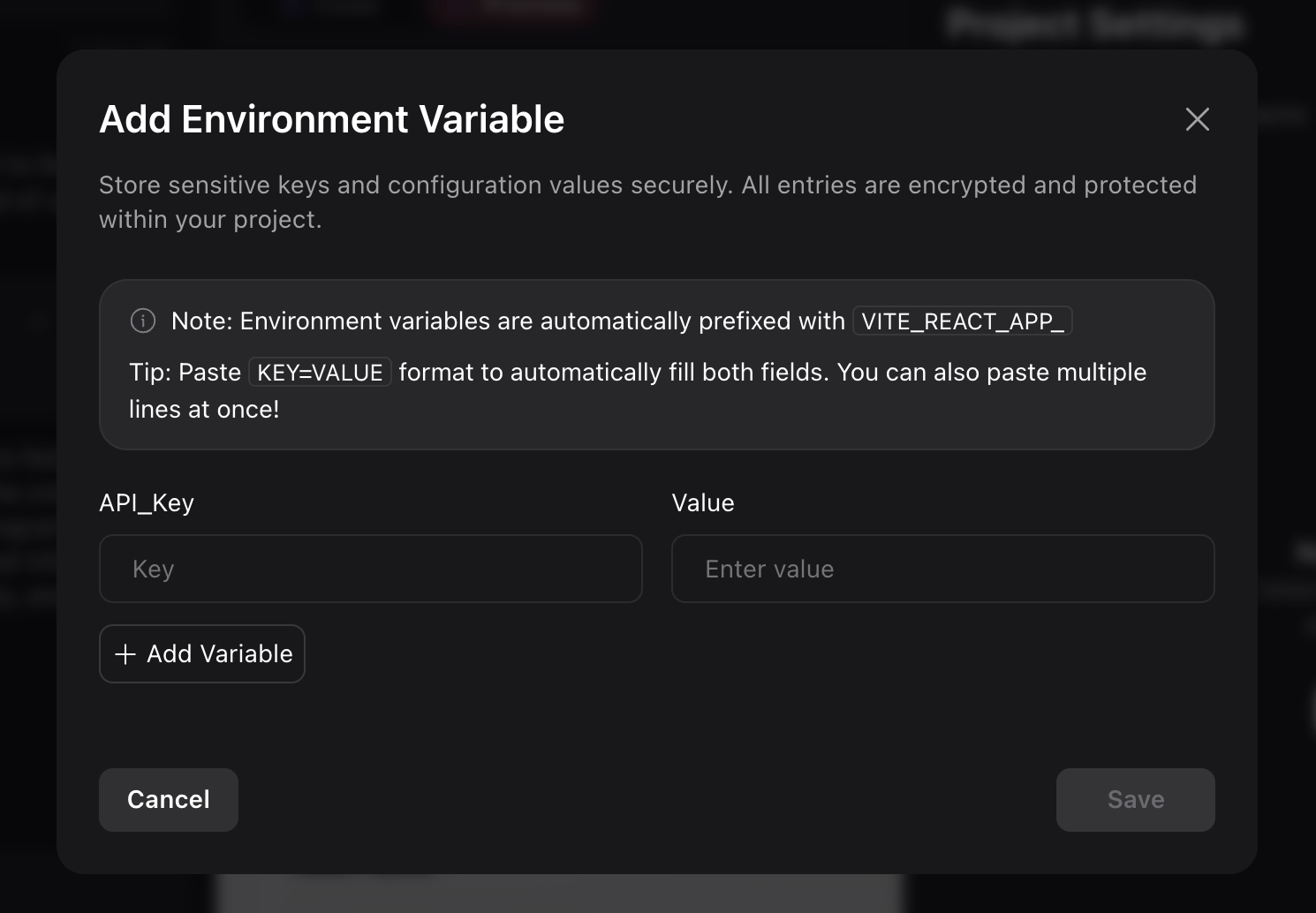
VITE_REACT_APP_) - Value: Enter the
corresponding value (API keys, URLs, configuration strings, etc.)Environment Variable Format
All environment variables are automatically prefixed with
VITE_REACT_APP_ to
ensure they’re accessible in your React application.Example Variables
Common environment variables you might need:Managing Existing Variables
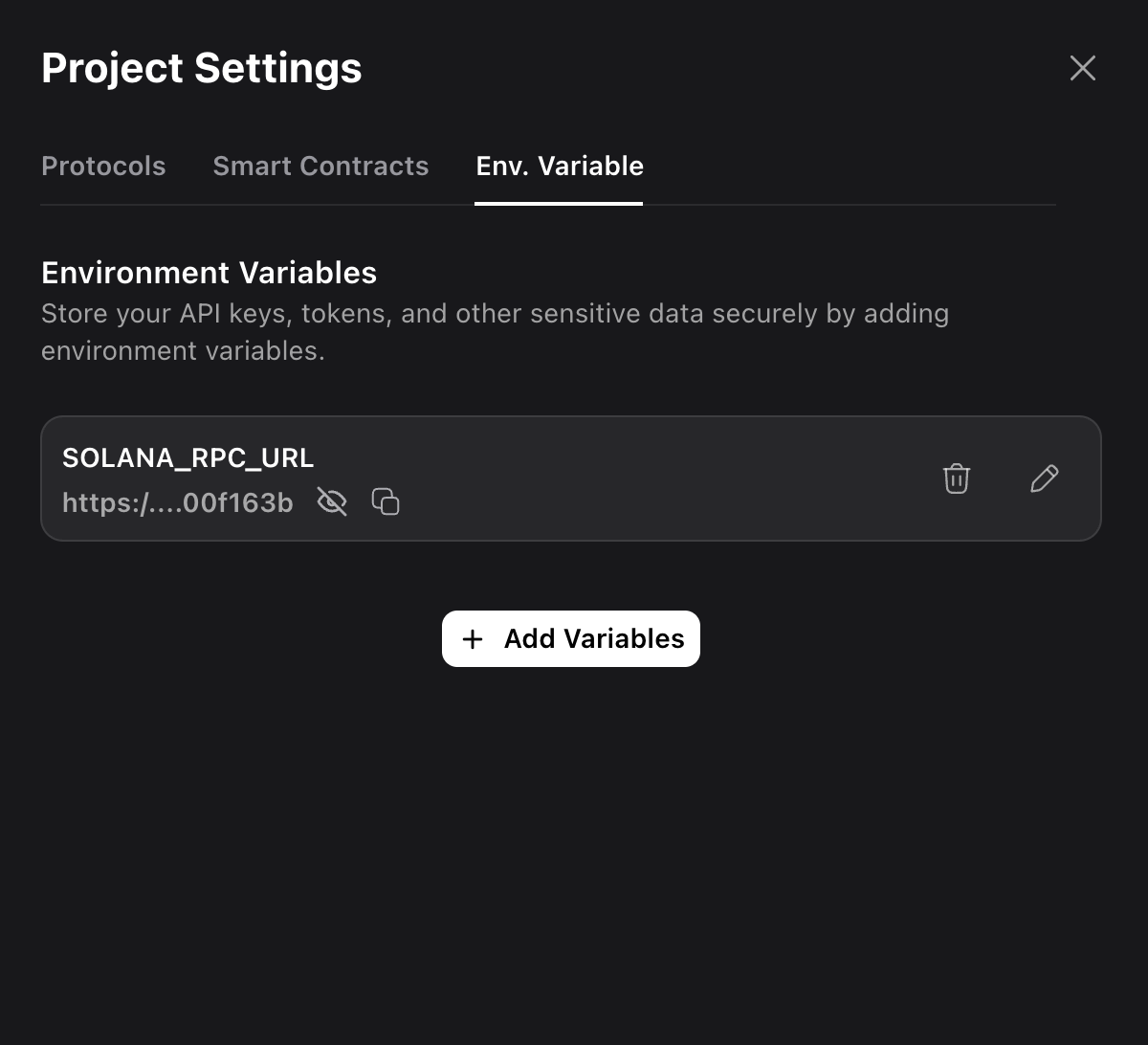
Once you have environment variables configured, you can:- View: See all configured variables (values are masked for security)
- Edit: Update existing variable values
- Delete: Remove variables you no longer need
- Add More: Easily add additional variables as your project grows
Security Features
Encryption
All environment variables are encrypted at rest using industry-standard encryption
No External Storage
Your secrets never leave your project environment - Noah doesn’t store them
externally
Masked Values
Variable values are masked in the UI to prevent accidental exposure
Access Control
Only you have access to your project’s environment variables
Best Practices
Security Guidelines
Security Guidelines
- Never commit API keys to version control
- Use descriptive but secure variable names
- Regularly rotate API keys and update variables
- Test with development keys before using production credentials
- Use different variables for development and production environments
Organization Tips
Organization Tips
- Group related variables with consistent naming (e.g.,
SOLANA_,API_) - Document what each variable is used for in your team - Keep a backup of your variable names (not values) for reference - Use environment-specific prefixes when needed
Troubleshooting
Troubleshooting
- Check the “Missing env variables” indicator for configuration issues
- Verify variable names match what your code expects
- Ensure all required variables are configured before deployment
- Test your dApp after adding new variables to confirm they work
Next Steps
Protocol Integration
Configure external protocol integrations that use your environment variables
Deploy Your dApp
Once all variables are configured, deploy your dApp with full functionality