

Protocol Integration
Enhance your dApp’s functionality by integrating with popular Web3 protocols and DeFi services. Noah provides seamless, pre-configured integrations with leading blockchain protocols, making it easy to add advanced features to your project.Accessing Protocol Settings
To configure protocol integrations:Open Project Settings
Click the Settings button (gear icon) in your project toolbar to access Project Settings.
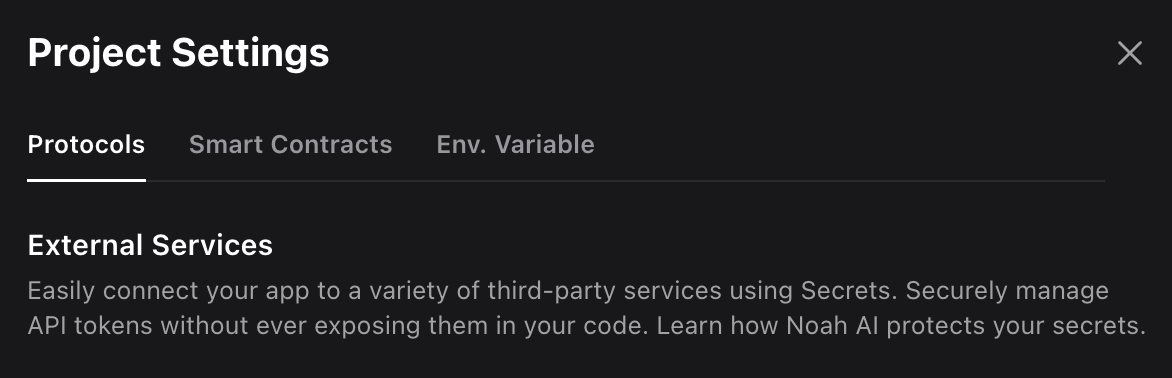
Available Protocol Integrations
Noah supports integration with popular Web3 and DeFi protocols: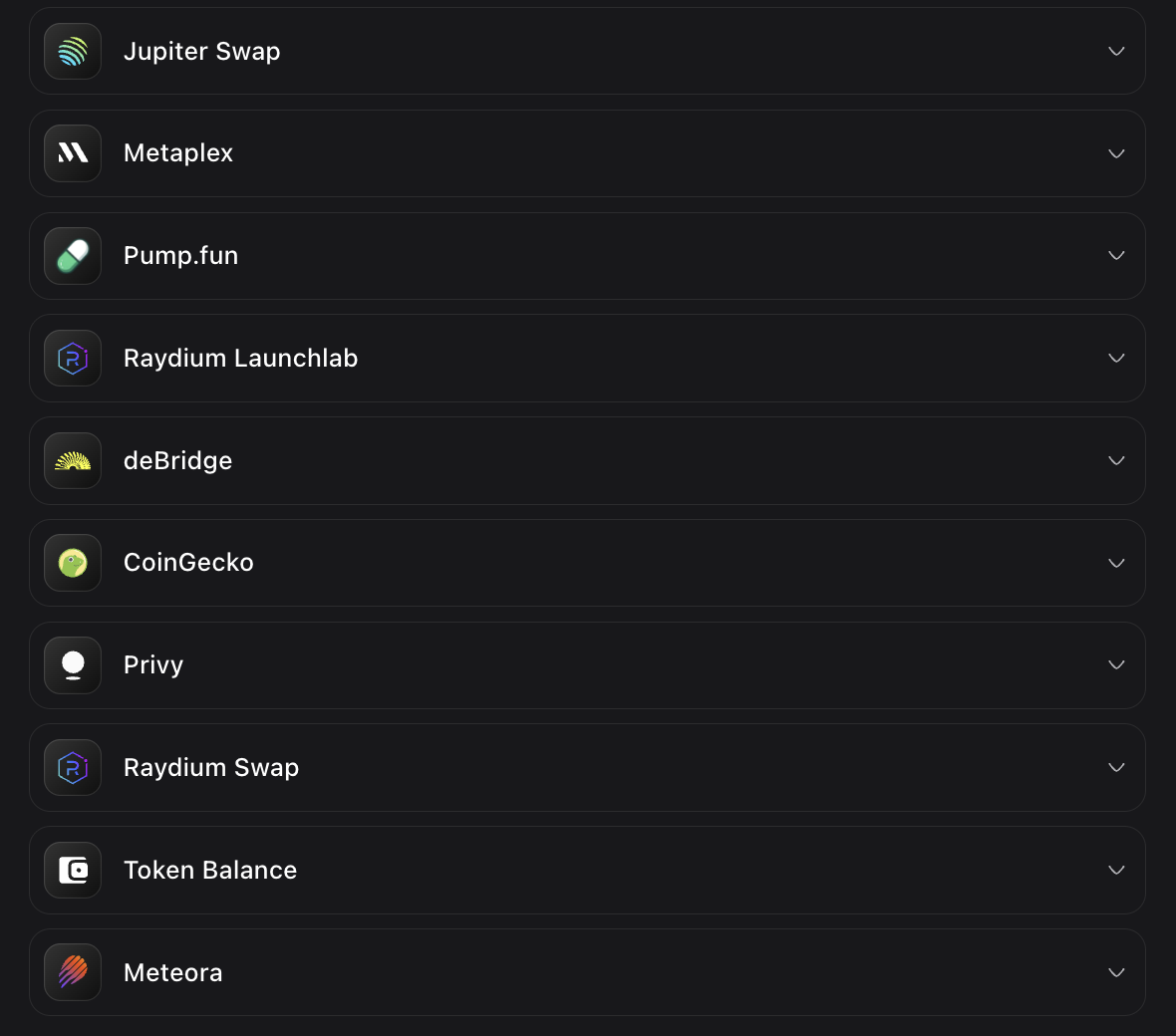
Metaplex
NFT creation and marketplace functionality for Solana
Pump.fun
Meme coin launching platform integration
Raydium
DEX trading and liquidity provision on Solana
deBridge
Cross-chain bridging solutions for multi-chain dApps
CoinGecko
Real-time price data and market information API
Privy
Authentication and user management solutions
Token Balance
Multi-chain token balance tracking and monitoring
Meteora
Advanced DeFi yield farming strategies
Raydium Swap
Token swapping functionality through Raydium DEX
Configuring a Protocol Integration
Select Protocol
In the Protocols tab, choose the service you want to integrate by clicking on it from the available options.
Review Configuration Requirements
Each protocol will show you what configuration is needed. You’ll see options
to Configure or Integrate.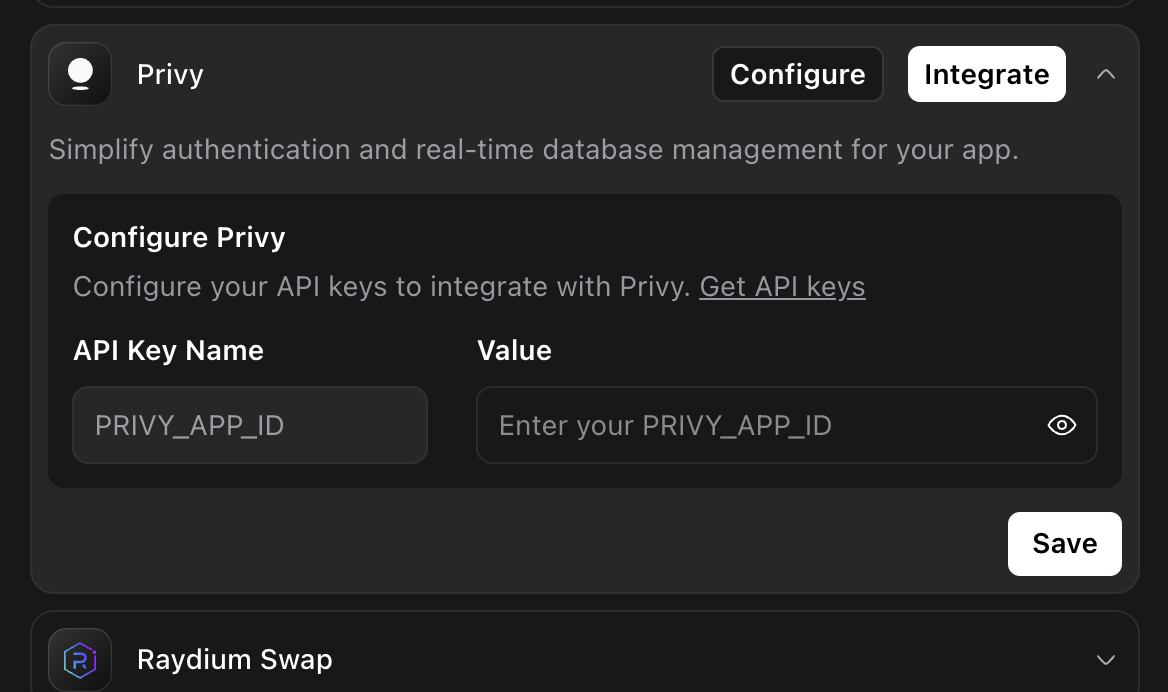
Configure API Keys
Click Configure to set up the required API keys and configuration options
for your chosen protocol.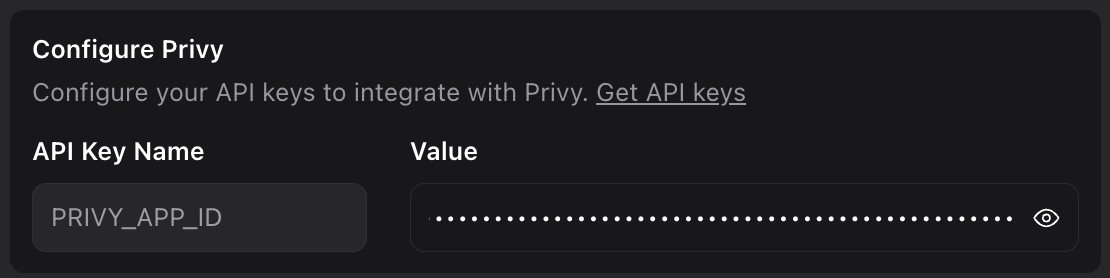
Each protocol has specific requirements. Noah provides clear labels and
examples for each field.
Get API Keys
Most protocols provide a “Get API keys” link that takes you directly to
the service’s developer portal to obtain your credentials.
Save Configuration
Enter your API keys and click Save to store them securely. The protocol
will now be available for integration.
Your protocol is now configured and ready to integrate into your dApp.
Protocol-Specific Features
- DeFi Protocols
- NFT & Gaming
- Infrastructure
- Meme Coins
Raydium, Meteora, deBridge
- Token swapping and liquidity provision
- Cross-chain bridging capabilities
- Advanced yield farming strategies
- Real-time price feeds and market data
Integration Best Practices
Performance Optimization
Performance Optimization
- Configure only the protocols you actually use in your dApp
- Monitor API rate limits for external services
- Cache responses when possible to reduce API calls
- Implement proper error handling for protocol failures
- Test integrations thoroughly in development
Security Considerations
Security Considerations
- Always use environment variables for API keys (see Environment Variables) - Verify protocol permissions and access levels - Regularly update and rotate API credentials - Monitor protocol usage and costs - Implement proper access controls in your dApp
Development Workflow
Development Workflow
- Start with testnet/devnet configurations when available
- Test each protocol integration individually
- Verify all required environment variables are set
- Document your integration choices for your team
- Plan for protocol updates and version changes
Troubleshooting Protocol Integrations
Configuration Issues
- Check API key validity and permissions
- Verify network/environment settings
- Ensure all required fields are filled
- Review protocol-specific documentation
Runtime Errors
- Monitor rate limit usage
- Check network connectivity
- Verify protocol service status
- Review error logs and messages
Next Steps
Environment Variables
Set up secure API key and configuration management
Deploy Your dApp
Deploy your dApp with all protocol integrations configured